From Posting to Application
This page follows one Posting through SuperImpress, from the Scan that finds it to the Application that you send. The example is Meera, a frontend engineer in Bengaluru. Her Posting is Senior Frontend Engineer at GitLab.
Before this, Meera did the three setup steps in Getting started: she set her Target, filled in her Career Record, and watched ten Boards.
1. A Scan finds the Posting
Section titled “1. A Scan finds the Posting”A Scan is one read of a Board. SuperImpress scans each Board about every six hours. When GitLab adds the role to its hiring board, the next Scan finds it.
After the Scan, SuperImpress compares the Posting with Meera’s Target. The title has “Frontend” in it, and the place is Bangalore, so the Posting is Relevant. A Posting that is not Relevant stays out of the Inbox. See Boards and Watches and Target and Relevance.
2. The Posting goes to the Inbox
Section titled “2. The Posting goes to the Inbox”The Inbox lists every Relevant Posting that has no Decision yet, newest first. Each row shows a label, a Score, the title, the company, and the place.
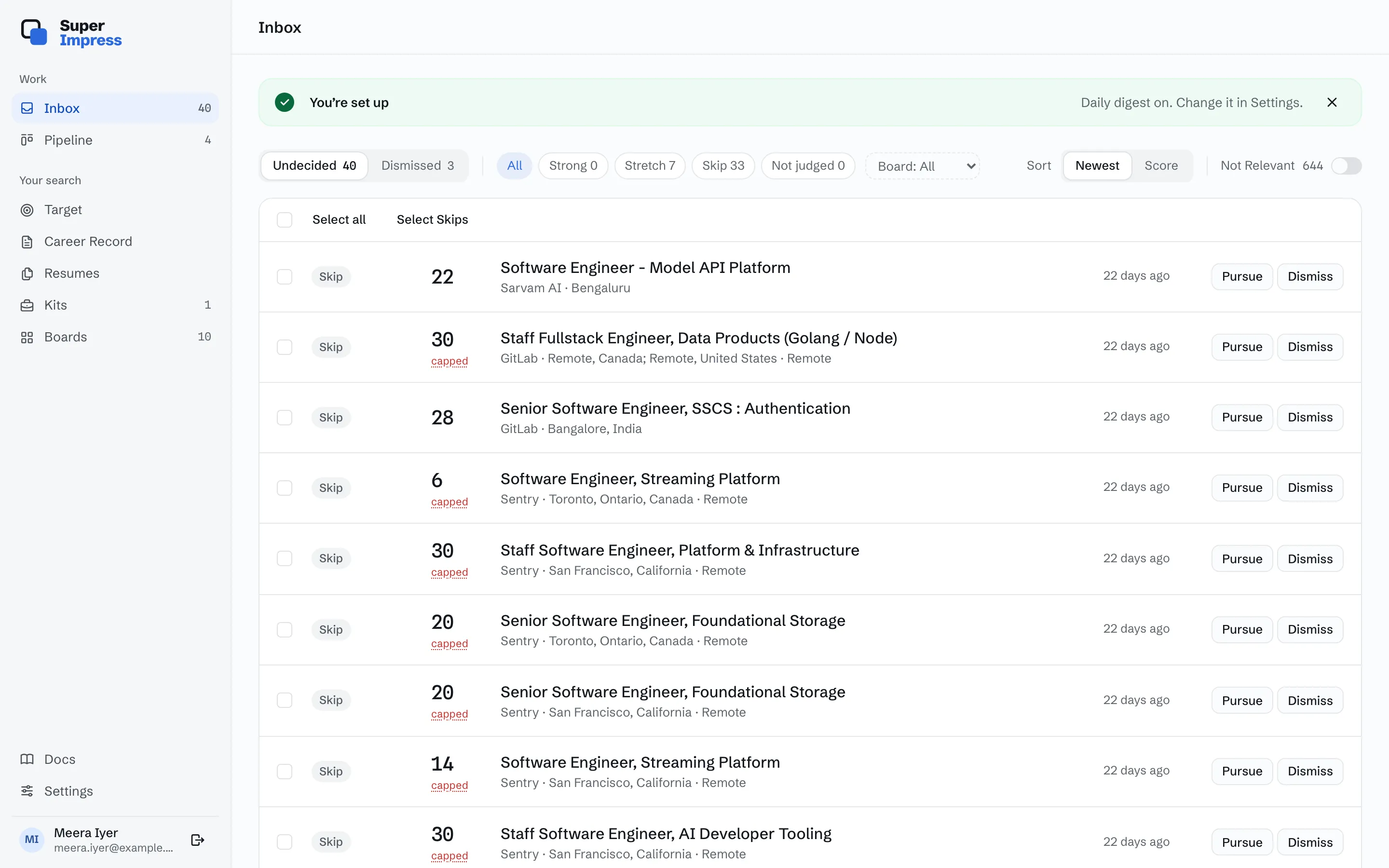
To see the best fits first, choose Sort: Score. See Inbox and Verdicts.
3. The Posting gets a Verdict
Section titled “3. The Posting gets a Verdict”A Verdict is a judgment of how well one Posting fits you. It gives a label (Strong, Stretch, or Skip), a Score out of 100, and its reasons. Autopilot writes it after the Scan, for free. Your agent can write it instead. The Verdict on the GitLab role is Strong.
To see why a Posting got its Verdict, open the Posting. The Posting page shows the Verdict, one row for each Check, the Company Brief, and the Posting text. This one is another Posting in Meera’s Inbox.
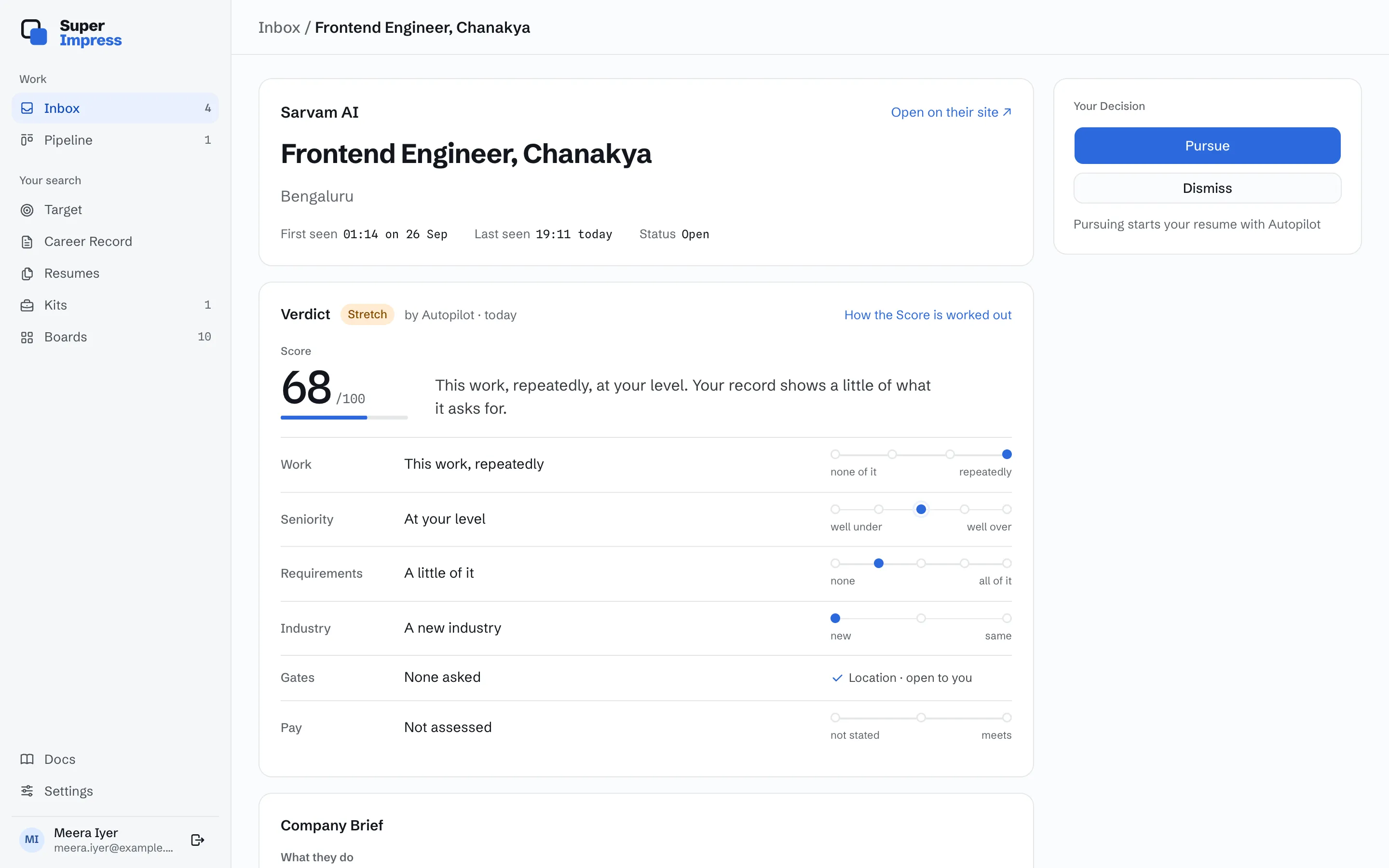
A Verdict never makes the Decision for you. A Skip only marks a Posting, and you can still pursue it. See The Verdict.
4. You pursue the Posting
Section titled “4. You pursue the Posting”Meera selects Pursue. SuperImpress opens an Application for the Posting, at the Pursuing Stage, and the Posting moves from the Inbox to the Pipeline. You cannot take back a Pursue.
With Autopilot on, Pursue also starts the resume. If the Posting is not for you, select Dismiss instead. See Decisions.
5. The Application holds the resume and the letters
Section titled “5. The Application holds the resume and the letters”The Application page holds everything for this one Posting: the Stages, the Verdict, the resume, the cover letter, and the outreach message.
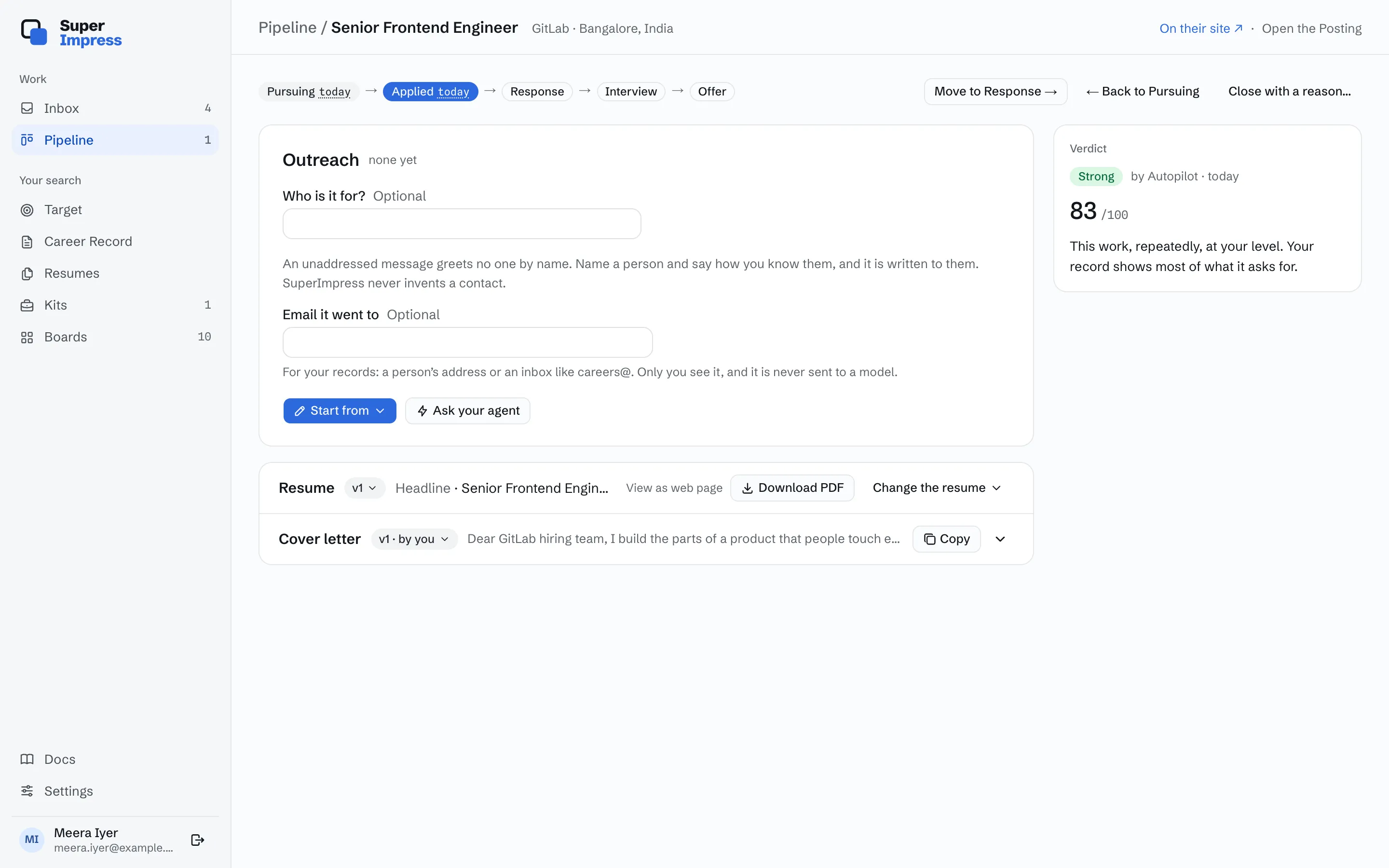
The resume is a Selection from the Career Record: the bullets that it prints, their order, and a headline. Autopilot made the first version when Meera pursued the Posting. To change it, choose “Change the resume”, then “Adjust the Selection by hand”. A resume never says anything that the Career Record does not say. See Resumes.
Autopilot writes no letters. Meera wrote the cover letter herself: “Start from” opens the editor, from a blank page or a Template. Your agent can also write it. When the letter is ready, Copy puts its text on your clipboard. SuperImpress sends nothing, so you send the letter yourself. See Letters and messages.

6. You move the Application through the Stages
Section titled “6. You move the Application through the Stages”After Meera applied on GitLab’s site, she moved the Application to Applied. SuperImpress never moves an Application on its own. Each time that you hear back, move it to the next Stage: Response, Interview, and Offer.

If the Application ends, select “Close with a reason”. The Pipeline shows every Application, with one column for each Stage. See Applications and Pipeline.
What to read next
Section titled “What to read next”- Autopilot: what Autopilot does for you, and when.
- What your agent can do: let your own AI agent do this work.
- Kits: write to a company that has no advert.